

Contents
Introduction
At times we would like to host our own GPU server to multiple developers for Machine Learning in our team and we’ll need a Jupyter Notebook from Jupyter Lab Notebook for every individual. JupyterHub comes to our rescue in such scenarios though it may not be so equivalent of a Google Colab notebook, it will reduce a lot of issues by separating user instances and running one instance per user and helping to alleviate any conflicts.
JupyterLab is a powerful interactive development environment for data science and machine learning. When working with GPU-accelerated workloads (e.g., PyTorch, TensorFlow), running JupyterLab inside Docker ensures reproducibility while leveraging GPU hardware. This article is written with Ubuntu in mind.
This guide will walk you through:
Setting up JupyterHub with Docker
- Enabling NVIDIA GPU support: This is important for machine learning as without this bigger models may not be able to perform well and will not be able to offload the work to cuda (GPU)
- Configuring native authentication (user signup/login)
- Persistent storage for user notebooks
- Auto-creating user directories : This makes sure every user has their own folder to keep their Jupyter Notebook copies for themselves without interfering with other’s code
Prerequisites
- Ubuntu 24.04 LTS (or 22.04)
- NVIDIA GPU (Tested with RTX 5070)
- Docker & Docker Compose installed
- NVIDIA drivers (nvidia-smi should work)
Step 1: Install NVIDIA Container Toolkit
Ensure Docker can access your GPU:
# Add NVIDIA's repository (Ubuntu 22.04 repo works on 24.04)

curl -fsSL https://nvidia.github.io/libnvidia-container/gpgkey | sudo gpg --dearmor -o /usr/share/keyrings/nvidia-container-toolkit-keyring.gpg

echo "deb [signed-by=/usr/share/keyrings/nvidia-container-toolkit-keyring.gpg] https://nvidia.github.io/libnvidia-container/stable/ubuntu22.04/$(dpkg --print-architecture) /" | sudo tee /etc/apt/sources.list.d/nvidia-container-toolkit.list

echo "deb [signed-by=/usr/share/keyrings/nvidia-container-toolkit-keyring.gpg] https://nvidia.github.io/nvidia-container-runtime/stable/ubuntu22.04/$(dpkg --print-architecture) /" | sudo tee -a /etc/apt/sources.list.d/nvidia-container-toolkit.list
# Install toolkit
sudo apt update
sudo apt install -y nvidia-container-toolkit nvidia-docker2
sudo systemctl restart docker
# Verify GPU access in Docker
docker run –rm –runtime=nvidia –gpus all nvidia/cuda:12.2.0-base-ubuntu22.04 nvidia-smi
Step 2: Set Up JupyterHub with Docker Compose
Create a docker-compose.yml:
version: '3'

services:

jupyterhub:

image: jupyterhub/jupyterhub:latest

build: .

runtime: nvidia

ports:

- "8000:8000"

volumes:

- /var/run/docker.sock:/var/run/docker.sock

- ./jupyterhub_config.py:/srv/jupyterhub/jupyterhub_config.py

- ./user-data:/srv/jupyterhub/data  # Persistent storage

environment:

- DOCKER_JUPYTER_IMAGE=nvcr.io/nvidia/pytorch:24.04-py3  # GPU-ready image

- DOCKER_NETWORK_NAME=jupyterhub-network

- NVIDIA_VISIBLE_DEVICES=all

networks:

- jupyterhub-network
networks:
jupyterhub-network:
name: jupyterhub-network
driver: bridge
attachable: true
Step 3: Configure JupyterHub (jupyterhub_config.py)
Create jupyterhub_config.py for:
- Native authentication (user signup/login) : There are other options too like GithubOAuthenticator, PAM Authenticator, but we focus on Native authentication
- GPU-enabled containers
- Persistent user directories: This is achieved by mounting a folder from the parent ubuntu storage and making it available for users
from dockerspawner import DockerSpawner

from nativeauthenticator import NativeAuthenticator

import os

from pathlib import Path
# Network and storage setup
network_name = os.environ.get(‘DOCKER_NETWORK_NAME’, ‘jupyterhub-network’)
notebook_dir = os.environ.get(‘DOCKER_NOTEBOOK_DIR’, ‘/home/jovyan/work’)
# Custom spawner for GPU and user dirs
class CustomDockerSpawner(DockerSpawner):
def __init__(self, *args, **kwargs):
super().__init__(*args, **kwargs)
self.image = os.environ[‘DOCKER_JUPYTER_IMAGE’]
self.extra_host_config = {
‘runtime’: ‘nvidia’,
‘network_mode’: network_name
}
async def start(self):
user_dir = Path(notebook_dir) / self.user.name
user_dir.mkdir(parents=True, exist_ok=True)
return await super().start()
# Assign configurations
c.JupyterHub.spawner_class = CustomDockerSpawner
c.JupyterHub.authenticator_class = NativeAuthenticator
c.Authenticator.admin_users = {“admin”} # Initial admin user
c.NativeAuthenticator.enable_signup = True # Allow user registration
c.NativeAuthenticator.minimum_password_length = 8
c.NativeAuthenticator.firstuse_db_path = “/srv/jupyterhub/data/passwords.db”
# Networking
c.JupyterHub.hub_ip = ‘jupyterhub’
c.JupyterHub.hub_connect_ip = ‘jupyterhub’
Step 4: Build and Launch
# Create directories

mkdir -p user-data

chmod -R 777 user-data  # Temporary permissions for testing

# Start JupyterHub

docker-compose build

docker-compose up -d
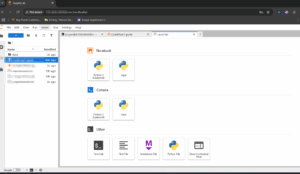
Access at: http://your-server-ip:8000
Step 5: Verify GPU Access
In a JupyterLab notebook:
Make sure to install Pytorch by choosing the right options from Pytorch Download Configuration website.
import torch

print(f"CUDA available: {torch.cuda.is_available()}")  # Should return True

print(f"GPU: {torch.cuda.get_device_name(0)}")  # e.g., "NVIDIA RTX 5070"
Conclusion
You now have a multi-user JupyterLab environment with:
- GPU acceleration (PyTorch/TensorFlow)
- Native user authentication (signup/login)
- Persistent storage
- Docker isolation for security
Ideal for teams working on AI/ML projects!
References:
Jupyterlab website – Contains plethora of information on installation and how to use the system
Pytorch – Check using torch.cuda.is_available() – Ensures if Cuda is accessible in the docker environment, especially for every individual user who has signed into the Jupyter lab
DockerSpawner – spawns new docker instances for every user login ensuring compartmentalization of instances without interfering with other’s work